 Back
Back
How to Use Your USB
Step 1
Turn on your Chromebook.
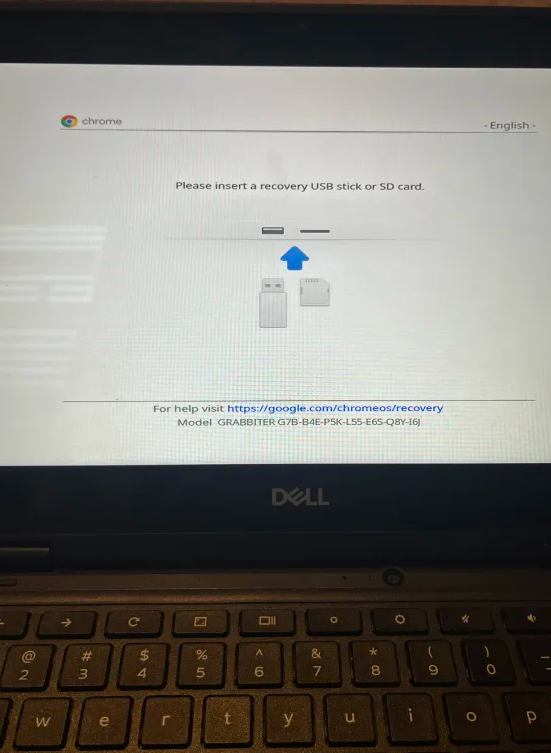
Press the Power (⏻), Reload (↻), and ESC keys at the same time.
Your screen might look like this or something similar:
Step 2
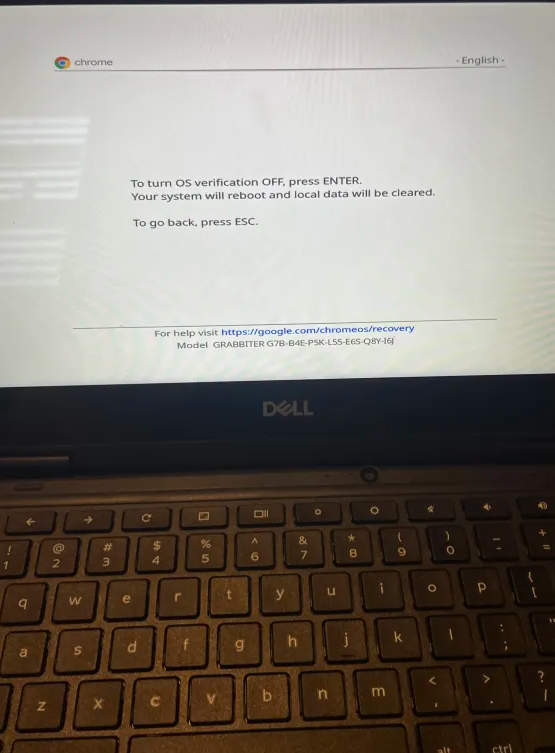
Press CTRL + D.
Your screen might look like this:
Step 3
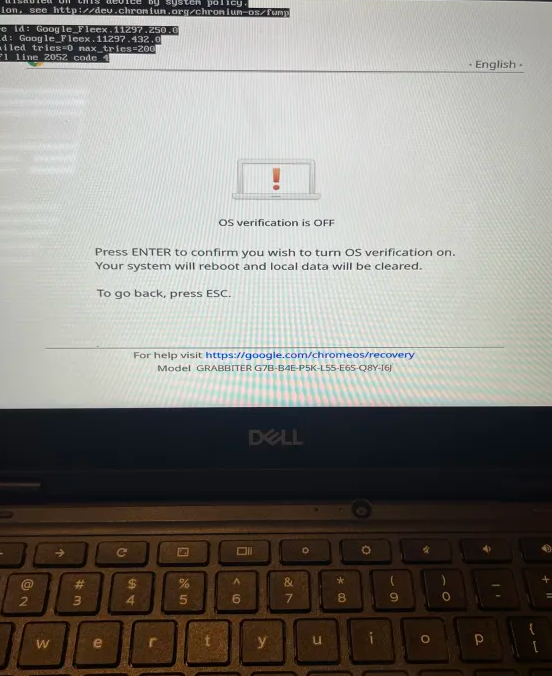
Press the Enter key.
Your screen might look like this:
Step 4
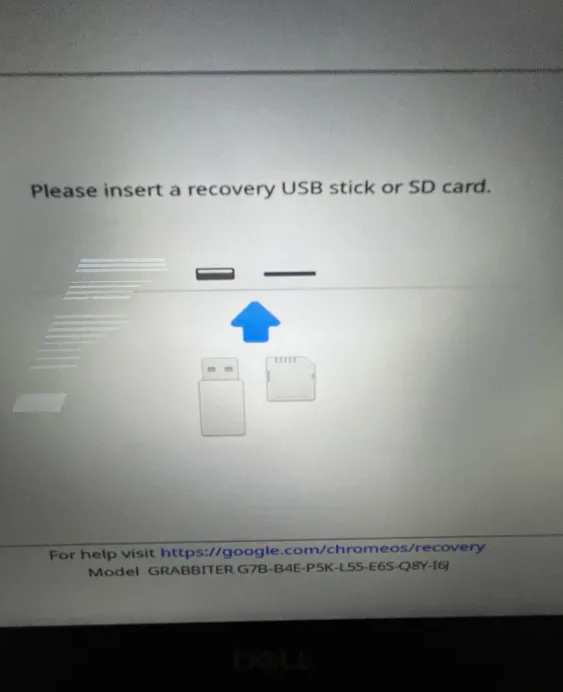
Press the Power (⏻), Reload (↻), and ESC keys again.
Your screen might look like this:
Step 5
Insert your USB/SD drive/card (the micro sd card port is right below the usb port).
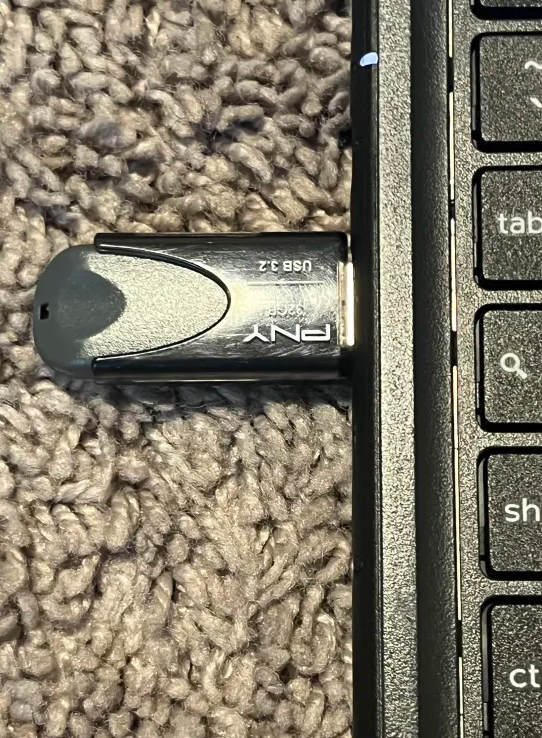
Done!
If everything worked, your Chromebook should boot into the Shimboot menu. I do not have a image but you would press 3 to boot into linux (debian)
(REQUIRED) POST STEPS: The user name & passowrd for the os is set to user & user for both. After loging in run "sudo expand_rootfs" in a console to expand your file system. You can change your password by running "passwd user" in a console.
That's it for the guide.
Welp, you got linux!